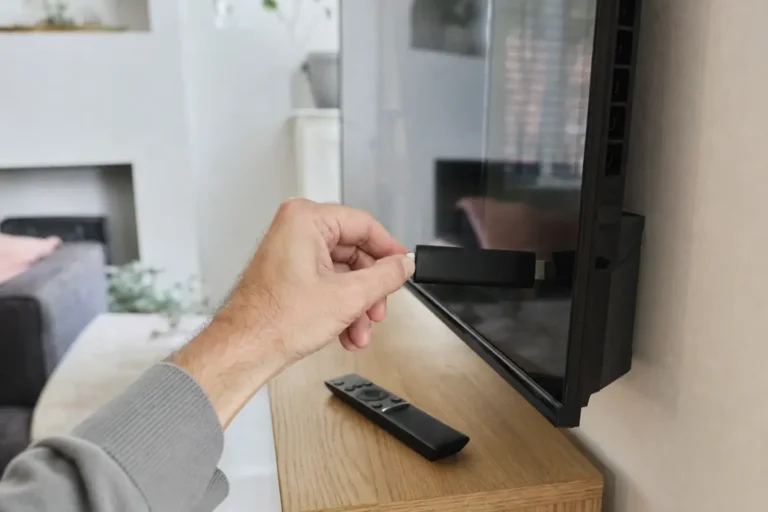
You do not need a Firestick or an extra box to watch IPTV. Most Samsung, LG and Hisense Smart TVs can run an IPTV app directly, so your channels, films and series appear right on the TV you already own. Here is how to watch IPTV on a Smart TV in about ten minutes.
Which Smart TVs work with IPTV?
- Samsung Smart TVs running Tizen (most models from 2017 onwards)
- LG Smart TVs running webOS (most models from 2016 onwards)
- Hisense TVs with VIDAA
- Android TV and Google TV models from Sony, Philips, TCL and others, which can use Android apps such as TiviMate
If your TV is older or the app is not in its store, a streaming stick is the easiest alternative. See our Firestick IPTV guide.
The best IPTV app for Samsung and LG
Samsung and LG TVs cannot install most Android apps, so the choice is smaller. IBO Player is one of the most popular options because it is available in both app stores and you add your playlist from your phone, not with the TV remote.
How to install IPTV on a Samsung Smart TV
- Press the Home button and open Apps (Smart Hub).
- Select the search icon and type IBO Player.
- Choose the app and press Install, then Open.
- Note the Device ID and Device Key shown on screen. A photo with your phone is easiest.
How to install IPTV on an LG Smart TV
- Press the Home button and open the LG Content Store (called Apps on newer TVs).
- Search for IBO Player.
- Select Install, then Launch.
- Note the Device ID and Device Key.
Add your IPTV playlist
This step is the same on every TV:
- On your phone or computer, open the IBO Player website and choose Manage Playlist.
- Log in with the Device ID and Device Key from your TV.
- Choose Add Xtream Playlist and enter the Server URL, Username and Password from your Telemo welcome email.
- Save, then close and reopen the app on your TV.
Your channels and TV guide load within a minute or two.
What if the app asks for activation?
IBO Player and similar apps usually offer a free trial, then ask for a one-off activation fee to the app developer. This is separate from your IPTV subscription. Telemo customers can message support before paying, and we will help you choose the best option for your TV.
Tips for the best picture on a Smart TV
- Use Ethernet. Smart TVs have an Ethernet port. A cable to the router gives the most stable stream, especially in 4K.
- Turn off motion smoothing (Auto Motion Plus on Samsung, TruMotion on LG) for a more natural picture with live sport.
- Keep the TV updated. Go to Settings → Support → Software Update.
- Restart the TV fully by unplugging it for 30 seconds if the app feels slow. Smart TVs often only go to standby.
Smart TV or streaming stick?
Watching directly on your Smart TV means one less remote and no extra device. A streaming stick such as a Fire TV Stick 4K gives you more app choice, including TiviMate, and is usually faster. If your TV is more than five or six years old, a stick is often the better experience.
Get started
Telemo works on Samsung, LG and Hisense Smart TVs, with 24/7 UK support if you need a hand. Follow the Smart TV installation guide or see our IPTV UK plans.