When IPTV is not working, it is almost always one of a few simple causes: a typo in the login, a stale app, a device that needs a restart, a second VPN, or a home network that has stopped coping. The good news is that you can fix most of these in minutes without contacting anyone. This guide lists 12 fixes in the order that solves problems fastest, then shows what to send to support if the problem remains.
First, which problem do you have?
| What you see | Start with fix |
|---|---|
| Login or “invalid user” error | 1, 2 |
| App opens but there are no channels | 2, 3, 4 |
| Black screen or “loading” forever | 5, 6, 7, 8 |
| Picture freezes or buffers | 6, 7, 9 |
| TV guide (EPG) is empty or wrong | 10 |
| App crashes or will not open | 11 |
| Nothing works anywhere | 6, 12 |
12 fixes, in order
1. Check your login details letter by letter
Most login errors are one wrong character. The Server URL, Username and Password in your welcome email are case-sensitive, and it is easy to confuse a capital I with a lowercase l, or a zero with the letter O. Paste the details instead of typing them, and make sure no space has been copied at the start or end.
2. Re-add the playlist
If the app has an old or half-saved login, delete it and add it again. In apps such as IBO Player, you manage the playlist on the app’s website using the Device ID and Device Key shown on your TV. Choose Add Xtream Playlist and enter the Server URL, Username and Password again, then restart the app. Our installation guide has the steps for every device.
3. Check your subscription is active
If your login worked yesterday and fails today, check that your plan has not reached its end date. Look for your welcome email and the end date on your plan, or message support to confirm.
4. Refresh or reload the channel list
Many apps cache the channel list. Use the refresh or reload option in the app’s settings, or restart the app after adding the playlist. A large list can take a minute to load the first time, so leave the app open while it fills.
5. Restart the app, then the device
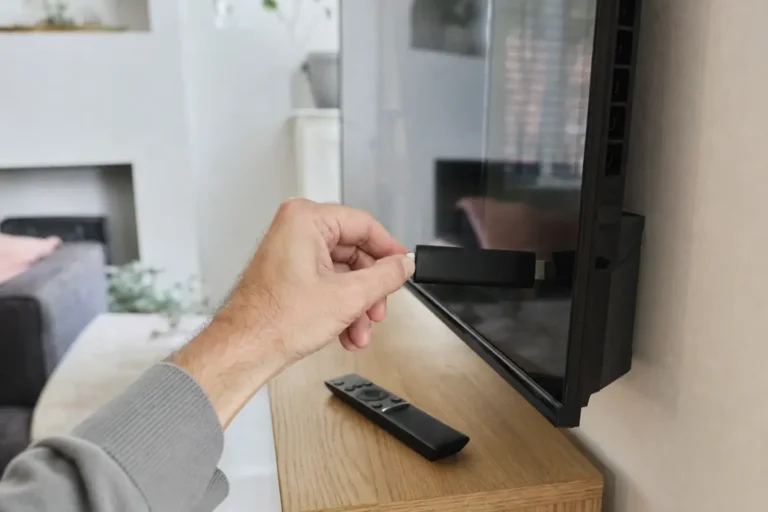
Close the app completely and open it again. If that does not help, restart the whole device: on a Firestick, unplug it for 30 seconds. This clears memory and temporary errors.
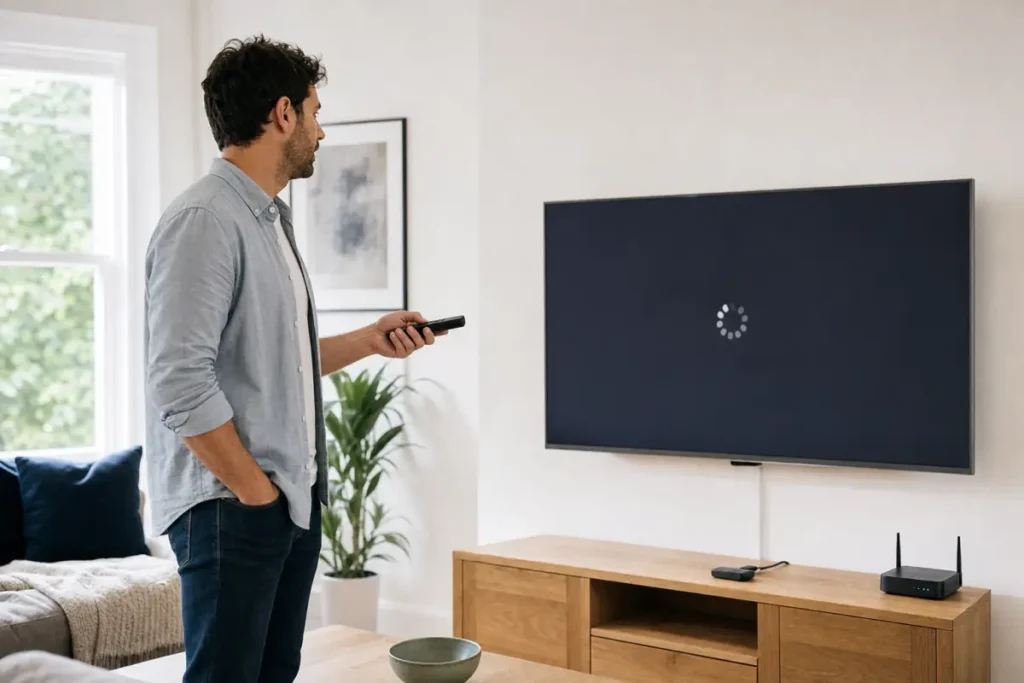
6. Restart your router and check the internet
Unplug the router for 30 seconds and plug it back in. Then open a browser or another app on the same device to check the internet really works. If other apps fail too, the problem is your connection, not IPTV. Read our guide to fixing IPTV buffering for more network fixes.
7. Turn off any second VPN
If your IPTV service already includes a VPN, a separate VPN app on top of it can cause black screens, freezing and login failures. Switch off any other VPN on the device, and on the router if it has one, then try again. See IPTV UK with VPN for how to set it up properly.
8. Check the date and time on your device
A wrong date, time or time zone can make secure connections fail and leave you on a black screen. Set the date and time to automatic and make sure the time zone is United Kingdom.
9. Lower the quality or switch channel
If one channel fails but others work, try its HD or backup version, or choose a lower quality in the app. A 4K stream on a weak connection often shows a black screen or constant loading, so test with HD first. See the internet speed you need for IPTV.
10. Fix an empty or wrong TV guide
The TV guide (EPG) can take a few minutes to fill the first time. Leave the app open, then refresh the guide in the settings. If times are wrong, check the time zone in the app and on the device. Our guide to EPG and catch-up on IPTV explains why a guide can be empty.
11. Clear the app cache or reinstall it
If the app crashes or will not open, clear its cache and data in the device settings, or uninstall and reinstall it. Update the app to the latest version first, because old versions can stop working with new device software. You will need to add your playlist again after a reinstall.
12. Try another device or app
Install the app on a phone or tablet, or try a different IPTV app on the same TV. If it works there, the problem is the first device or app. If it fails everywhere with the same error, the issue is the login or the service, and support can help. Our pick of the best IPTV apps lists alternatives for each device.
What to send support if it still does not work
You will get a faster answer if your message includes:
- The device and app you use, for example Fire TV Stick 4K and IBO Player.
- The exact error message, or a photo of the screen.
- What already tried from the list above.
- Whether the problem affects all channels or one, and since when.
- Whether it happens on Wi-Fi and on another network, such as your phone’s hotspot.
Telemo customers can message our support team on WhatsApp at any time, and we will help you step by step.
Frequently asked questions
Why is my IPTV not working suddenly?
The most common causes are an expired plan, a second VPN, a router or device that needs a restart, and a changed or mistyped login.
Why does IPTV show a black screen?
Usually a weak connection, a second VPN, a wrong date and time on the device, or a 4K stream that is too demanding. Try HD and switch off other VPNs.
Why does my IPTV app say “invalid user” or “login failed”?
The Server URL, Username or Password is wrong, or your plan has ended. Check the details letter by letter, paste them and re-add the playlist.
Why is there no TV guide?
The guide takes a few minutes to load the first time. Refresh it in the settings and check the time zone.
Do I need to reinstall the app?
Only as a later step. Try the restart, VPN, network and playlist fixes first.
Is the problem my IPTV service or my setup?
If other apps and devices on the same network also fail, it is your setup. If the same login fails on every device and network, contact your provider.
Still stuck? Test with a free trial
If you are comparing services, a free trial on your own device shows quickly whether a problem is yours or the provider’s. Start the free 24-hour trial, or compare the plans.