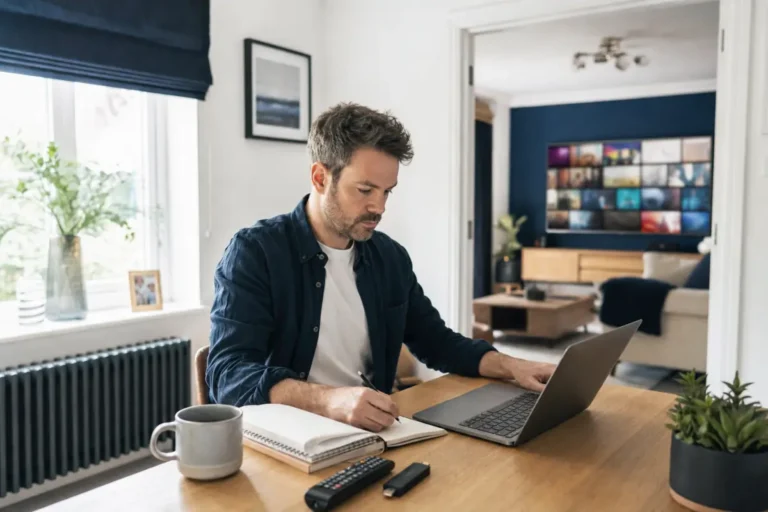
If you are looking at IPTV UK with VPN, you are probably asking one of three questions: do I need a VPN to watch IPTV, will it stop my internet provider slowing my streams, and is it safe to run one alongside my IPTV app? This guide answers all three in plain English, explains the difference between a built-in VPN and a separate one, and shows how to set everything up so it works smoothly.
What does a VPN do for IPTV?
A VPN (virtual private network) creates an encrypted tunnel between your device and a server run by the VPN. Your internet provider can see that you are connected to the VPN, but not the websites, apps or streams inside it. For IPTV, that brings three practical benefits:
- Privacy. Your internet provider and anyone on the same network cannot see what you are streaming.
- No throttling of streams. Some providers slow certain kinds of traffic, especially video at busy times. When the traffic is encrypted, it is harder for them to single out and slow down.
- Safer public Wi-Fi. On a hotel, airport or cafe network, a VPN protects your connection while you watch on a phone or laptop.
Do you need a VPN for IPTV in the UK?
It depends on your provider and your priorities. You do not have to use a VPN to use IPTV, and the technology itself is legal. But a VPN is useful if you want more privacy, if your connection slows down on video at peak time, or if you watch away from home on public networks. It is also worth knowing what a VPN cannot do. It does not change where content comes from, and it does not make unlicensed content legal. For the full picture, read our guide Is IPTV legal in the UK?.
Built-in VPN vs a separate VPN app
| Built-in VPN | Separate VPN app | |
|---|---|---|
| Setup | Nothing to install, it is part of the service | Install and configure another app on each device |
| Cost | Included in the subscription | Usually a separate monthly fee |
| Speed | Designed for streaming, so it stays fast | Varies a lot; many VPNs slow video down |
| Devices | Works on the devices you stream on | Some Smart TVs and sticks do not support VPN apps |
| Best for | Most households who just want it to work | People who want one VPN for everything they do online |
A built-in VPN is simpler because it is made for the service. There is nothing to switch on, it does not fight with the IPTV app, and it works on devices that cannot run a VPN app, such as many Smart TVs.
Why running two VPNs causes buffering
This is the most common mistake. If your IPTV service already includes a VPN and you also switch on a separate VPN app, your traffic is encrypted twice and routed through two servers. The result is higher latency, slower speeds and often freezing or buffering. The fix is simple: turn off any other VPN while you watch, and let the built-in one do the work. Our guides to fixing IPTV buffering and watching live football on IPTV both include this in the checklist.
What does Telemo’s built-in VPN do?
Every Telemo plan, Standard and Premium, includes a built-in VPN and anti-block protection. That means your streams stay private and are less likely to be slowed by your internet provider, with nothing extra to install or pay for. Because it is built in, it works on every device you use for IPTV. See what is included on our IPTV subscription plans page.
How to set up IPTV with a VPN
- Check whether your provider includes a VPN. If it does, you do not need another one for streaming.
- Turn off other VPN apps on the device you watch on, including any on your router.
- Install your IPTV app and sign in. See our installation guide for every device, or our pick of the best IPTV apps.
- Test at a busy time, such as an evening or a weekend match, and check that channels start quickly and stay smooth.
- Check your speed. A VPN adds a little overhead, so make sure your connection has room. See the internet speed you need for IPTV.
If your provider has no VPN
If your IPTV service does not include one and you want to use your own, choose carefully:
- Pick a VPN with fast servers close to you, and use its nearest UK location.
- Choose a VPN that supports your device. Many Smart TVs cannot run VPN apps, but a Fire TV Stick or Android box often can.
- Avoid free VPNs. They are usually slow, limit your data and may sell it.
- Test it on a free trial or money-back guarantee before relying on it.
Common VPN and IPTV problems
- Buffering or freezing. Turn off any second VPN, restart the app and device, and try Ethernet or 5 GHz Wi-Fi.
- Slow channel switching. A distant VPN server adds delay. Choose a nearer UK server.
- The app will not connect. Disconnect the VPN, check the app works, then reconnect it.
- Speed drops with a VPN. Check your base speed first. If it is already near the limit, 4K may need to drop to HD.
Frequently asked questions
Do I need a VPN to watch IPTV in the UK?
No, it is not required. A VPN adds privacy and can reduce throttling, and if your IPTV service already includes one you do not need another.
Is it safe to use a VPN with IPTV?
Yes, as long as you use a reputable VPN and do not run two at the same time. A VPN does not change the legal status of the content you watch.
Does a VPN stop buffering?
Sometimes. If your internet provider is slowing video traffic, a VPN can help. But if the cause is weak Wi-Fi, a slow connection or an old device, a VPN will not fix it and can make things slower.
Can I use a VPN on a Smart TV?
Many Samsung and LG Smart TVs cannot run VPN apps. A built-in VPN solves this because it protects the stream without needing a separate app.
Does Telemo include a VPN?
Yes. Every plan includes a built-in VPN and anti-block protection at no extra cost.
Should I turn off my other VPN when using IPTV?
Yes. If your IPTV service includes a VPN, turn off any other VPN app while you watch to avoid freezing.
Try IPTV UK with a built-in VPN
The easiest way to see the difference is to test it at a busy time. Start a free 24-hour trial with the built-in VPN included, then see the plans, or read our guide to choosing an IPTV UK subscription. Questions? Message our support team on WhatsApp.