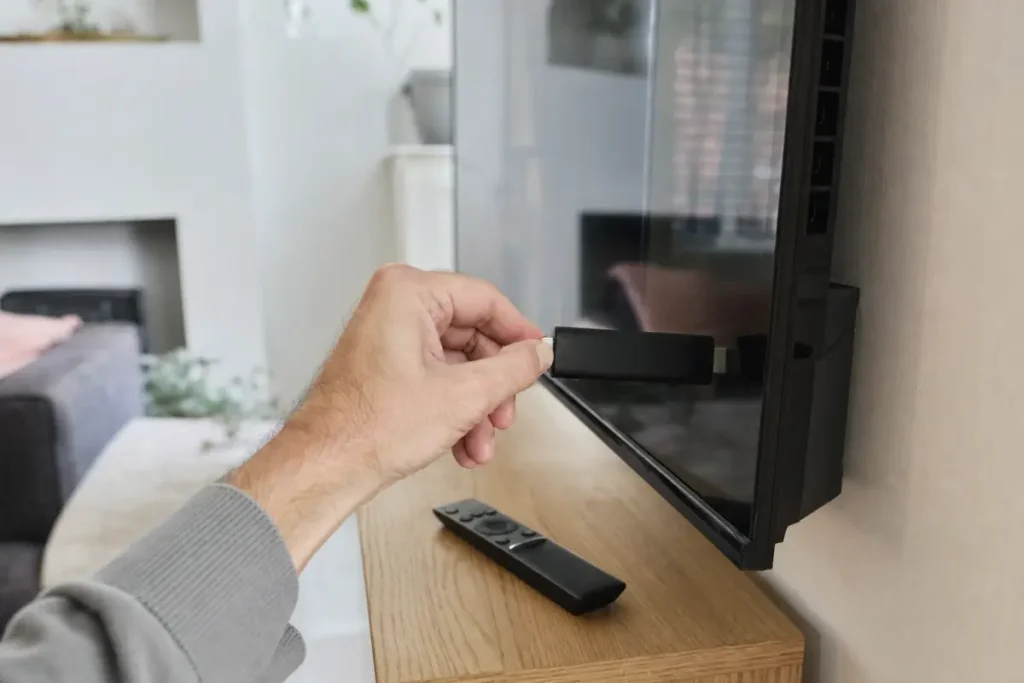
The Amazon Fire TV Stick is the most popular way to watch IPTV in the UK. It is cheap, it plugs straight into any TV with an HDMI port, and it runs all the major IPTV player apps. This guide shows you exactly how to install IPTV on a Firestick, from unboxing to watching your first channel, in about five minutes.
What you need before you start
- A Fire TV device. Any Fire TV Stick, Fire TV Stick 4K, Fire TV Stick 4K Max or Fire TV Cube works. For 4K streams, choose a 4K model.
- Your IPTV login details. With Telemo, your welcome email contains your Server URL, Username and Password (often called Xtream Codes).
- A stable internet connection. Around 15 Mbps for HD and 25 Mbps or more for 4K.
- Your phone. Some apps show a code on screen that you need to type on a website.
Which IPTV app should you use on a Firestick?
An IPTV subscription gives you the channels. The app is the player that shows them on your TV. The three most popular choices on Fire TV are:
- IBO Player: simple to set up because you add your playlist from your phone. A good choice if you are new to IPTV.
- TiviMate: the favourite of many IPTV users thanks to its fast TV guide, favourites and catch-up support.
- IPTV Smarters Pro: a straightforward app with separate sections for live TV, films and series.
We use IBO Player in the steps below because it is available directly on Fire TV. If you would prefer TiviMate, message our support team and we will send you the easiest way to install it.
How to install IPTV on a Firestick: step by step
Step 1: Find the app
From the Fire TV home screen, go to Find → Search and type IBO Player. Select the app from the results.
Step 2: Install it
Press Get or Download. The app installs in under a minute. When it has finished, press Open.
Step 3: Note your Device ID and Device Key
The first time you open IBO Player, it shows a Device ID (sometimes called a MAC address) and a Device Key. Take a photo of the screen with your phone so you do not have to write them down.
Step 4: Add your IPTV playlist
On your phone or computer, open the IBO Player website and choose Manage Playlist. Log in with the Device ID and Device Key from your TV, then choose Add Xtream Playlist. Enter:
- any playlist name, for example Telemo;
- your Server URL;
- your Username and Password.
Copy and paste the details from your welcome email if you can. They are case-sensitive, and one wrong letter is the most common reason IPTV will not load.
Step 5: Restart the app
Go back to your TV, close IBO Player and open it again. Your channels, films and series load, along with the TV guide (EPG). That is it: you are watching IPTV on your Firestick.
Tips for the best picture on Fire TV
- Use a 4K model for 4K. The standard Fire TV Stick tops out at Full HD. For Premium 4K streams, use a Fire TV Stick 4K or 4K Max.
- Use the 5 GHz Wi-Fi band. It is faster and less crowded than 2.4 GHz. If your TV is far from the router, an Ethernet adapter for Fire TV makes a big difference.
- Keep storage free. Fire TV Sticks have limited storage. Uninstall apps you do not use and clear the IPTV app cache now and then.
- Restart once a week. Hold Select and Play/Pause together for five seconds to restart the stick. It clears memory and keeps apps running smoothly.
Common Firestick IPTV problems and fixes
“Invalid login” or nothing loads
Check the Server URL, Username and Password again, letter by letter. Make sure there are no spaces at the start or end.
Channels buffer or freeze
Restart the Firestick and your router, then test your internet speed. Our guide to fixing IPTV buffering covers every step.
The TV guide is empty
The EPG can take a few minutes to download the first time. Leave the app open, then restart it.
The app asks for activation
Some player apps offer a free trial and then ask for a one-off activation fee to the app developer. Message Telemo support before you pay anything and we will help you choose the best option.
Ready to set up IPTV on your Firestick?
Telemo works on every Fire TV device, with a built-in VPN, a full TV guide and 24/7 UK support if you get stuck. See our IPTV UK plans, or follow the full Firestick installation guide.