IBO Player is one of the easiest IPTV apps to set up, because you add your playlist from your phone instead of typing long details with a TV remote. It works on Firestick, Android TV, Samsung and LG Smart TVs and phones, and it is the app we recommend to Telemo customers. This guide walks through the full IBO Player setup on every popular device, explains the Device ID and Device Key, and fixes the errors people hit most often.
What you need before you start
- Your IPTV login details: the Server URL, Username and Password from your provider’s welcome email.
- Your TV or streaming device connected to the internet.
- A phone or computer with a browser, to add the playlist.
- About 10 minutes.
IBO Player is a player app, not a TV service. It plays the channels from your IPTV subscription, so you need a working subscription first. If you do not have one yet, you can start a free 24-hour trial.
How IBO Player setup works (the short version)
- Install IBO Player on your TV or device.
- Open it and note the Device ID and Device Key on screen.
- On your phone or computer, open the IBO Player website and choose Manage Playlist.
- Log in with the Device ID and Device Key, then choose Add Xtream Playlist.
- Enter your Server URL, Username and Password, and save.
- Restart IBO Player on your TV. Your channels, films, series and TV guide load.
The steps are almost the same on every device. Only the first step, installing the app, changes.
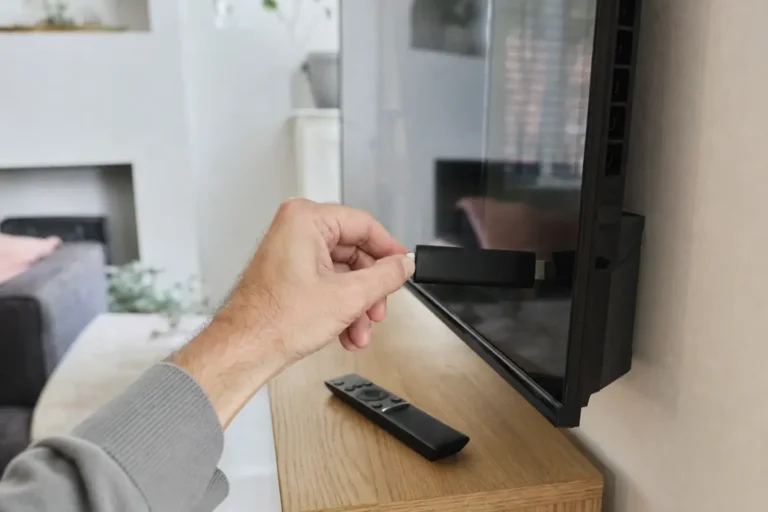
Step 1: Install IBO Player on your device
| Device | Where to find IBO Player |
|---|---|
| Amazon Firestick and Fire TV | Fire TV home screen, Find → Search, type “IBO Player” |
| Android TV and Google TV | Google Play Store on the TV |
| Samsung Smart TV | Samsung Smart Hub app store |
| LG Smart TV | LG Content Store |
| Android phone and tablet | Google Play Store |
| iPhone and iPad | App Store |
Select the app, install it and open it. On a Firestick, our Firestick IPTV guide has screenshots of each menu, and our Samsung and LG guide covers Smart TVs in detail.
Step 2: Find your Device ID and Device Key
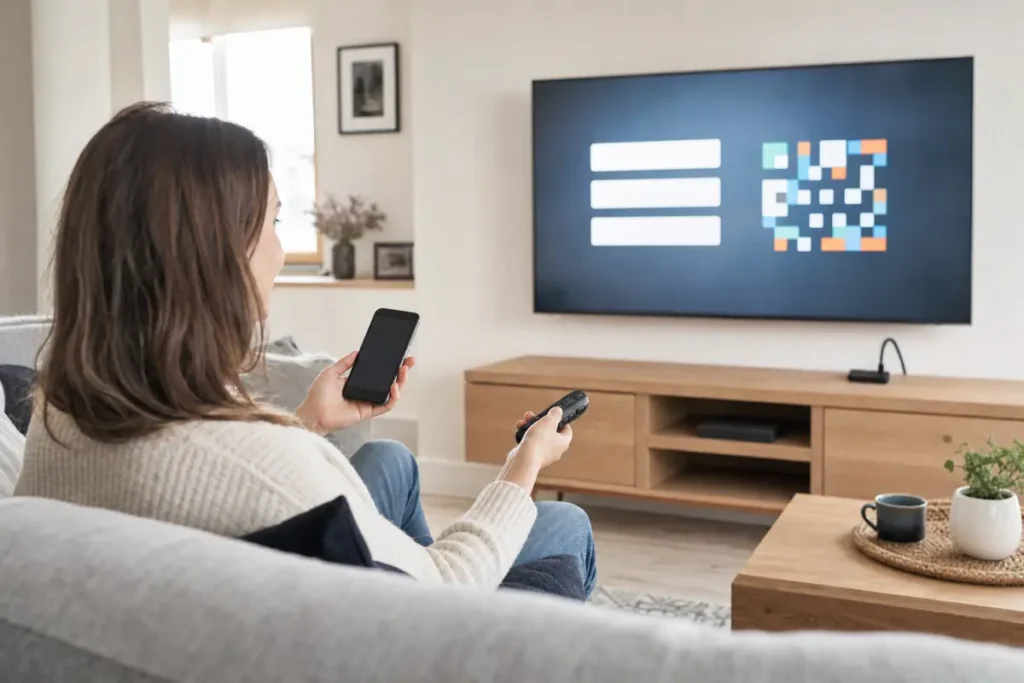
The first time you open IBO Player, it shows a Device ID (sometimes shown as a MAC address) and a Device Key. These identify your TV so you can add a playlist to it from another device.
- Take a photo of the screen with your phone, so you do not have to write them down.
- Copy them exactly. Letters and numbers are easy to mix up, such as O and 0, or I and 1.
- Each device has its own ID and Key. If you use IBO Player on two TVs, you add the playlist to each one.
Step 3: Add your IPTV playlist
- On your phone or computer, open the IBO Player website and choose Manage Playlist (or Login).
- Enter the Device ID and Device Key from your TV.
- Choose Add Xtream Playlist (also called Xtream Codes).
- Give it any name, for example Home.
- Enter the Server URL, Username and Password from your welcome email. Paste them rather than typing, and make sure there are no spaces at the start or end.
- Save the playlist.
Xtream or M3U? Choose Xtream when your provider gives you a Server URL, Username and Password. It loads live channels, films, series and the TV guide together and is easier to update. Use M3U only if your provider sends you a single long playlist link.
Step 4: Restart and start watching
Go back to your TV, close IBO Player completely and open it again. Your playlist appears, and the channels, films and series load. The first load of a large list and the TV guide can take a minute or two, so leave the app open while it fills.
Tips to get the most from IBO Player
- Add favourites. Mark the channels you watch most so they are one click away.
- Hide groups you never use. A shorter list is faster to browse.
- Use the TV guide. The EPG shows what is on now and next. See what EPG and catch-up are.
- Use Ethernet or 5 GHz Wi-Fi for live sport and 4K. Our guide to the internet speed you need for IPTV has the numbers.
- Turn off other VPNs if your IPTV service already includes one. Two at once can cause freezing. See IPTV UK with VPN.
IBO Player trial and activation
IBO Player usually gives you a free trial period, then asks for a one-off activation fee paid to the app developer. That fee is for the app, not for your IPTV channels, and it is separate from your IPTV subscription. Check the current terms on the IBO Player website before you pay. Telemo customers can message our support team first, and we will tell you whether activation is needed on your device.
Common IBO Player problems and fixes
| Problem | Fix |
|---|---|
| “Invalid Device ID or Key” on the website | Re-check both from the TV screen. Look for O vs 0 and I vs 1. |
| Playlist added, but no channels on the TV | Close the app completely and reopen it. If still empty, delete the playlist and add it again. |
| Login or “playlist failed” error | Paste the Server URL, Username and Password again. They are case-sensitive. Check your plan is active. |
| Black screen or endless loading | Restart the device and router, switch off other VPNs and set the date and time to automatic. |
| TV guide empty or wrong times | Wait a few minutes for it to load, then refresh. Check the time zone is United Kingdom. |
| App says the trial has ended | This is the app’s activation, not your IPTV plan. Check the IBO Player terms or ask your provider. |
For more fixes, read IPTV not working? 12 fixes and our guide to fixing IPTV buffering.
IBO Player alternatives
If IBO Player is not available for your device, or you prefer a different layout, IPTV Smarters Pro works well on Android phones and computers, and Smarters Player Lite or iMPlayer work on Apple TV. Compare them in our guide to the best IPTV app for each device.
Frequently asked questions
Is IBO Player free?
IBO Player usually offers a free trial, then asks for a one-off activation fee to the developer. Your IPTV channels come from your subscription, not from the app.
Where do I find my IBO Player Device ID and Key?
They appear on the main screen the first time you open IBO Player on your TV or device. Take a photo so you have them ready.
Can I use IBO Player on more than one TV?
Yes. Install it on each device and add your playlist using that device’s own ID and Key. The number of screens that can watch at once depends on your IPTV plan.
Should I choose Xtream Codes or M3U in IBO Player?
Choose Xtream Codes if your provider gives you a Server URL, Username and Password. It loads channels, films, series and the TV guide together.
Why are there no channels after adding my playlist?
Restart the app. If the list is still empty, re-add the playlist and check the login details letter by letter.
Does IBO Player work with Telemo?
Yes. IBO Player is the app we recommend, and our support team can walk you through the setup on WhatsApp.
Need help with IBO Player?
Telemo IPTV UK customers get step-by-step setup help on every device. Start the free 24-hour trial, follow this guide or our full installation guide, and message our support team on WhatsApp if you get stuck.